

If a sharp corner becomes rounded in an SVG, inspect the node and its curve handles before changing laser settings. A smooth or symmetric node can continue the tangent through a point where the design requires an abrupt direction change. Restore that corner in a copy of the artwork, then compare both adjacent segments with the original shape.

The xTool node-editing documentation distinguishes sharp corners and several symmetry types. This is useful evidence for an artwork-editing problem. It does not mean the same command names or shortcuts exist in TYVOK software, or that xTool's editor operates an X1S 2026.
Identify the intended corner first
Zoom in on one affected point and select the vector rather than a preview image. Confirm that the rounded shape exists in the path itself. If the path is sharp but only the on-screen rendering appears soft, changing nodes may damage correct geometry without solving the display issue.
Keep the untouched path visible in a separate reference copy. Determine whether the point should join two straight segments, a straight segment and a curve, or two independent curves. Those situations can all contain a visible corner, but their handles need different treatment. Changing the node type alone is not always enough if the endpoints or handles have already moved.
Inspect one side at a time. Restore the intended incoming segment, then inspect the outgoing segment. Do not drag a symmetric handle and assume the opposite side remains unchanged. Check the neighboring nodes as well: a long handle can create an unexpected bulge some distance from the selected point.
A four-part inspection for large-panel artwork
| Feature in the X1S 2026 design | Question before export | Evidence to preserve |
|---|---|---|
| Corner node | Is an abrupt direction change intended? | Enlarged before-and-after view |
| Incoming edge | Should it be straight or curved? | Reference profile and endpoint |
| Outgoing edge | Did the edit move its tangent? | Overlay against the untouched copy |
| Closed boundary | Did the repair leave a gap or extra segment? | Complete contour preview |
If the repair requires removing a short unwanted segment, use a trim method that preserves intended separate paths and inspect the resulting endpoints. Closing every gap automatically can reconnect pieces that were meant to remain independent.
Compare the change at the final physical size
A corner that looks subtle at high zoom can change a mating edge or decorative feature at full scale. Check the final dimensions and the shape on either side of the repair before duplicating it across a panel. Keep a distinguishable comparison file so the intended change is easy to identify later.
For a decorative mechanism, a rounded tooth transition is only one possible cause of trouble. After verifying the outline, separate gear mesh from axle friction on a hand-turned test pair. A correct cusp does not prove that the cut parts have suitable clearance or aligned axles.
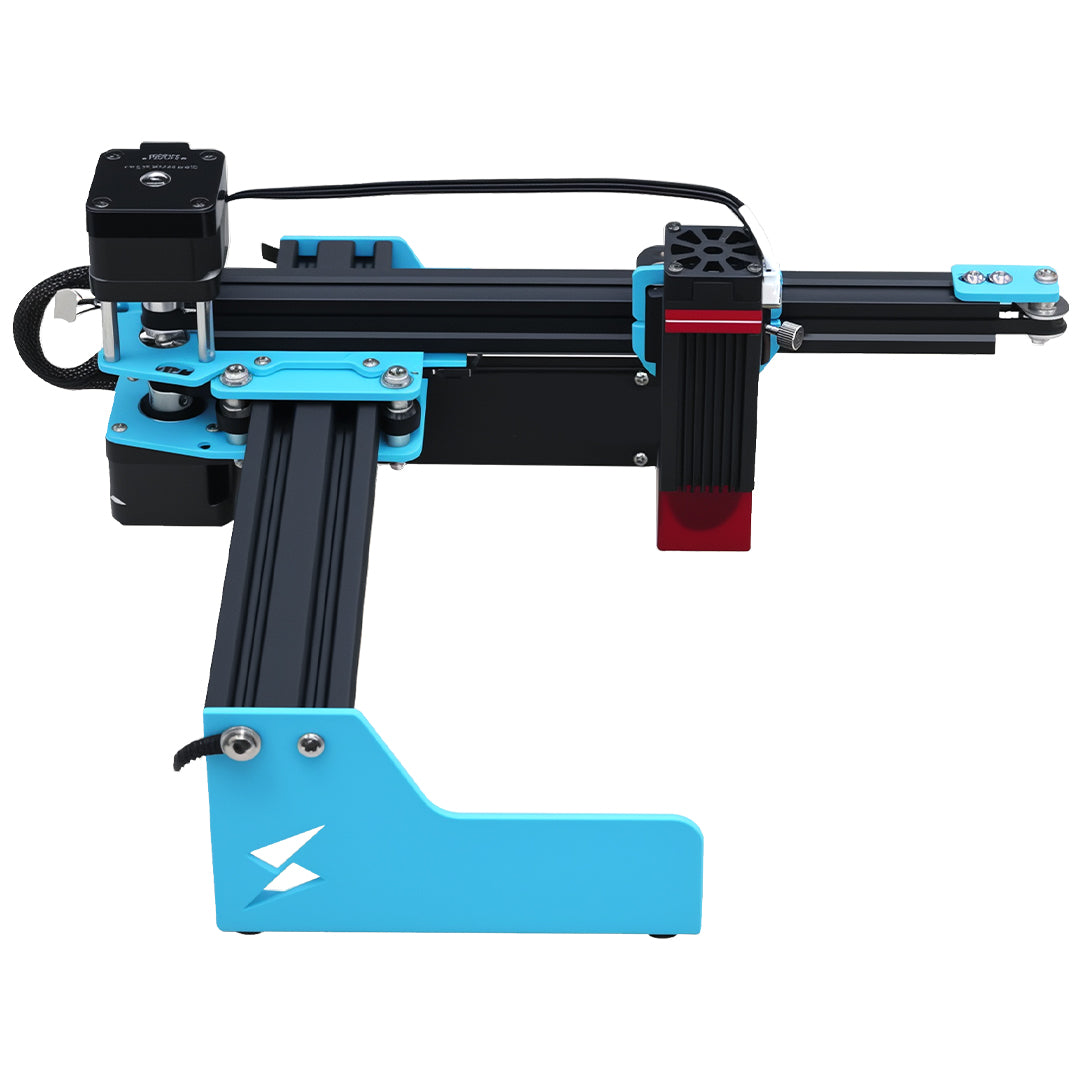
The TYVOK X1S 2026 listing describes an 800 × 800 mm starting area and expansion toward 800 × 2000 mm, with final-launch qualifications still displayed. Confirm the actual device and supported export route. SVG editing may take place in a separate design application; do not infer direct SVG support in every TYVOK control workflow from this geometric explanation.
Should I simplify the entire path to fix one rounded point?
Usually start with the affected node. Whole-path simplification can move other edges and remove details. Compare a local repair first, preserving the original for reference.
Can I sharpen an engraved corner by changing the node after cutting?
Editing changes only the file for a future operation. It cannot restore material already removed. Inspect a new small sample after fixing the geometry, and avoid repeated output onto an existing part without a verified process.
Check the machine before buying
For the material and workflow discussed above, review TYVOK X1S 2026 configurations and purchase options after testing the exact project materials and setup.