

When an SVG's shapes retain their dimensions but its lettering changes size, investigate the text definition before scaling the whole drawing. Relative font units, font substitution, or application interpretation can affect the letters while leaving the surrounding geometry correct. Enlarging everything may fix the visual impression and ruin the panel dimensions.

The LightBurn 2.2.00 RC1 early-access notes mention SVG text sizing and CSS relative-unit support. These version-specific changes motivate a targeted import check; they do not promise that any one release fixes every source file.
Measure the rectangle and the letters separately
Keep an untouched source document. In a working copy, place a known-size rectangle beside one representative line of text. Record the rectangle dimensions, the text's visible width, and the intended line height in the source application. After import, compare the same measurements.
If the rectangle changes size too, investigate overall import scale. If only the text changes, keep the panel geometry fixed while checking font availability and text units. Ask the artwork supplier for the font name and an export with explicit dimensions where the supported tools allow it. Avoid assuming that matching nominal point sizes guarantees matching visible lettering.
| Observation after import | Next comparison |
|---|---|
| Rectangle and letters both enlarged | Whole-document scale |
| Rectangle correct, letters enlarged | Font units and font substitution |
| Letters correct, curved edge missing | Export bounds and clipping |
| File refuses to open | File syntax and exact import error |
The third case belongs with curved text clipped by export bounds. The fourth needs a different approach, such as preserving an unexpected-entity SVG error. Neither is repaired by blindly changing the text size.
Choose editable text or fixed outlines deliberately
Converting approved lettering to paths in a duplicate file can reduce dependence on font interpretation, but it also removes ordinary text editing. Keep the editable original for spelling corrections and future names. Compare counters, accents, punctuation, and spacing after conversion; a letter that resembles the original at screen size may still contain an unwanted change.
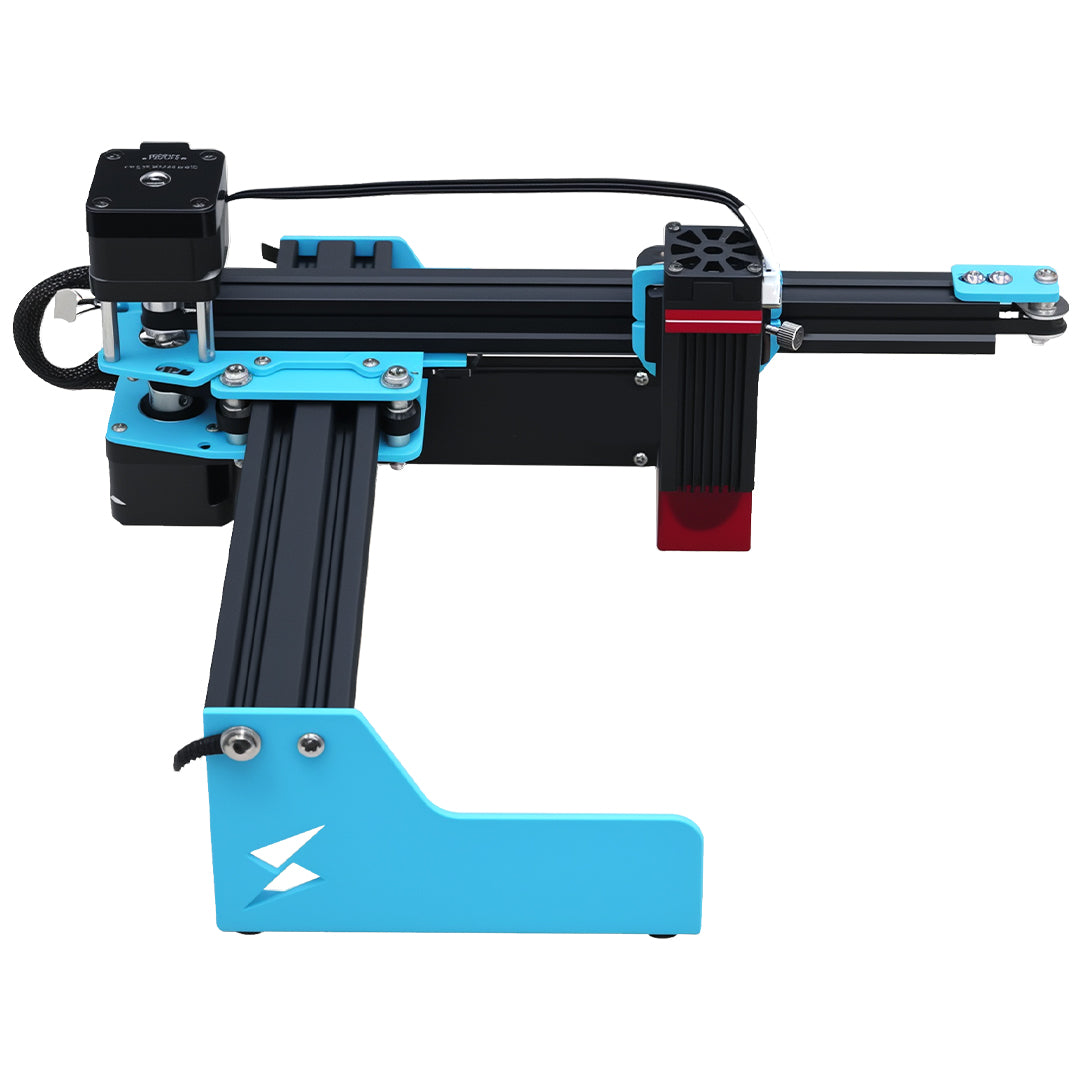
For a large sign, the reference-square scale check is especially useful before committing a full panel. The TYVOK X1S 2026 is positioned for large-format work, but the selected configuration and supported software must be confirmed. Machine travel does not validate imported typography, and a software upgrade should be evaluated separately from a paid job.
Questions about lettering size
Why is the same font size a different width after import?
A font may have been substituted, or the two applications may interpret its sizing differently. Compare the actual visible word width and font identity. Do not use a matching number in the font-size box as the only acceptance criterion.
Will turning text into paths preserve every future edit?
No. Paths preserve a particular outline rather than the editable wording. Keep both versions with clear filenames, and make wording changes in the editable file before generating a newly checked outline copy.