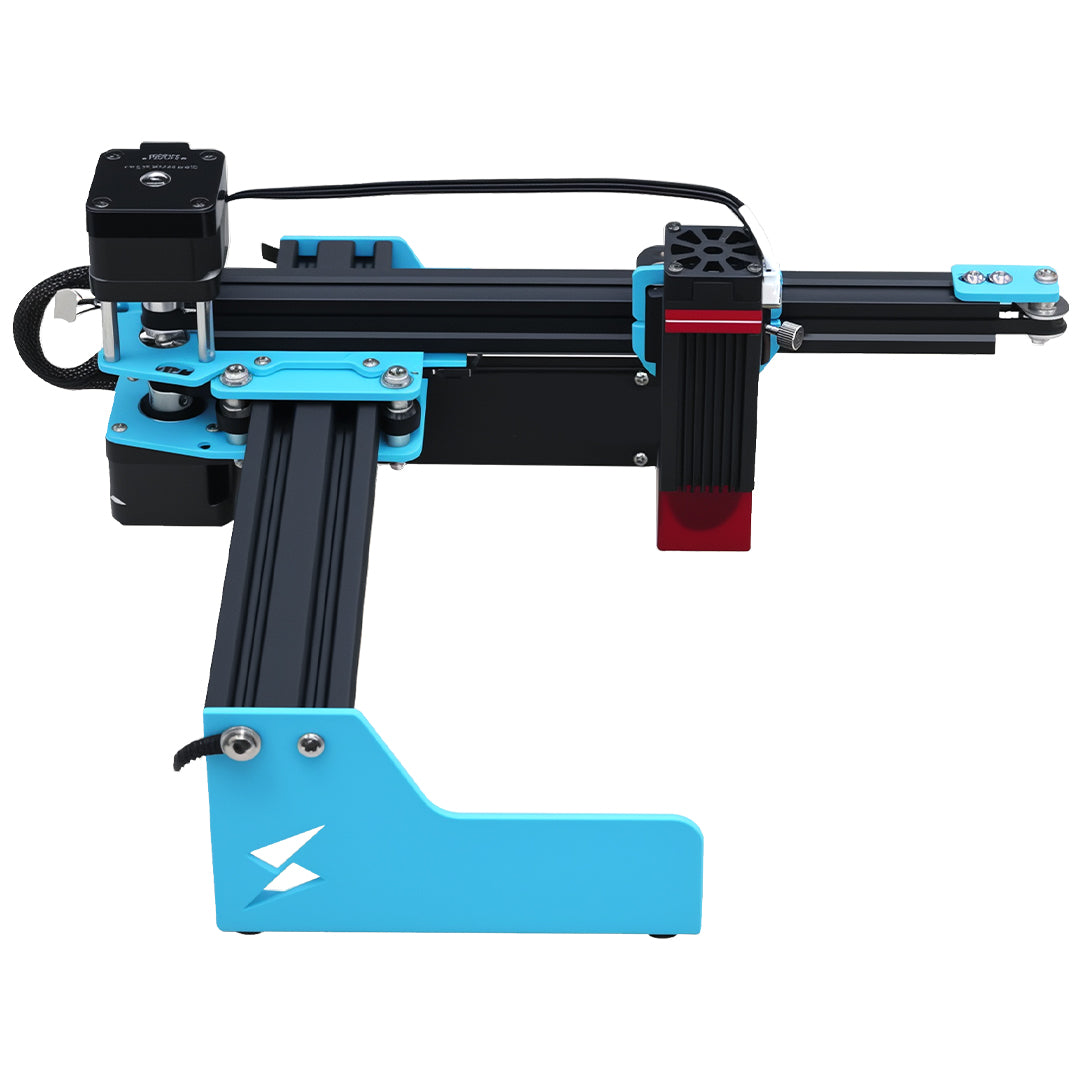


Software workflow guide
Laser engraving software guide
Laser engraving software turns artwork into machine instructions. Beginners should choose software by machine support, file type, material testing workflow, preview confidence, and whether they need compact P2 engraving or larger X1S layout planning.
Direct answer
Understand the setting before changing it
Laser engraving software turns artwork into machine instructions. Beginners should choose software by machine support, file type, material testing workflow, preview confidence, and whether they need compact P2 engraving or larger X1S layout planning.

Reference table
What changes the result
| Term | Meaning | Practical note |
|---|---|---|
| Design setup | Import text, logo, SVG, DXF, PNG, JPG, or prepared artwork | Use clean files before blaming settings. |
| Preview | Check size, position, orientation, and work area | Large boards need layout confidence before engraving. |
| Material test | Run a grid or small proof before paid work | Save settings with material and supplier notes. |
| Production repeat | Use templates and positioning notes | Repeat orders need fewer manual decisions. |
Next route
Move from explanation to testing
FAQ
Settings and software questions
What is the short answer for Laser engraving software guide?
Laser engraving software turns artwork into machine instructions. Beginners should choose software by machine support, file type, material testing workflow, preview confidence, and whether they need compact P2 engraving or larger X1S layout planning.
Should I copy settings from another machine exactly?
No. Use settings as a starting point, then test the exact TYVOK machine, material, focus, and file before paid work.
Where should I go after reading this page?
Open the settings chart, test files, material library, or TYVOK machine selector depending on whether you need numbers, proof files, material direction, or a buying route.