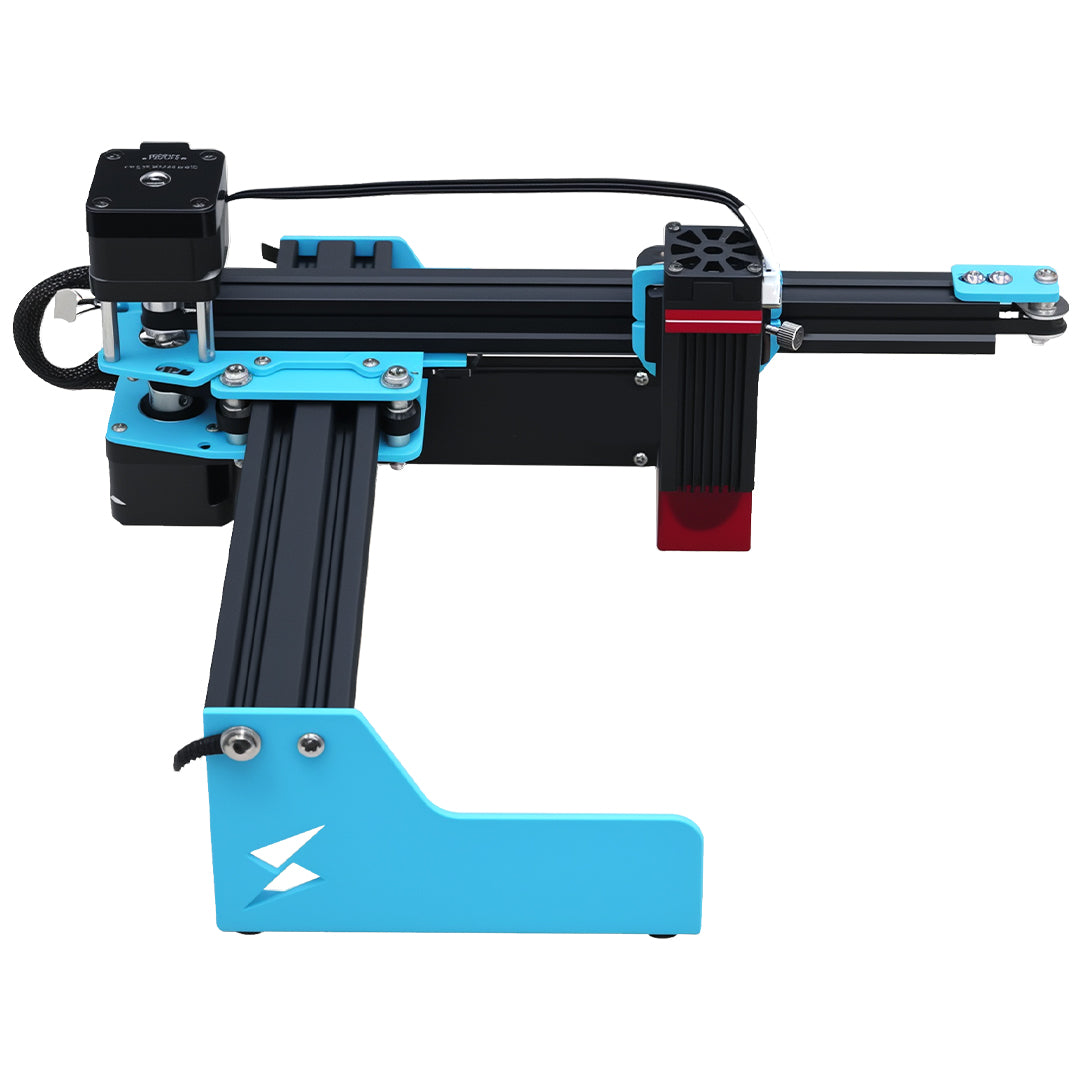


LightBurn can run on Windows ARM, but the application opening does not prove that an A1 Mini will communicate with that computer. Before choosing an ARM laptop for the machine, confirm the exact USB device and its supported driver with TYVOK. Do not guess the driver from another engraver’s setup instructions.
A LightBurn user with a Qualcomm-based Windows laptop raised this distinction between running the software and communicating with a machine. The official installation guidance lists Windows ARM support while noting the need to install USB drivers manually. That is software guidance, not a blanket compatibility statement for every laser controller.
Three separate checks for the proposed computer
| Check | Evidence to obtain | Why it is separate |
|---|---|---|
| Application support | Current LightBurn requirements for the Windows version and architecture | A program can launch through a supported environment without recognizing the hardware |
| Device driver | Identification of the actual A1 Mini USB interface and a supported driver source | The controller connection depends on more than the program window |
| Machine configuration | TYVOK’s current device profile and connection instructions | A recognized port does not prove correct job setup |
An advertisement saying “Windows laptop” may omit the CPU architecture. Record the model and Windows system type from the actual computer specification, along with the intended connection method. Send those details with the exact A1 Mini configuration when asking TYVOK to confirm support.
What to establish before the return window closes
Ask whether the seller can demonstrate the proposed computer communicating with the same machine configuration, or provide current installation instructions identifying the relevant driver. Keep a record of the confirmation. A demonstration on a different Windows computer answers a different question.
For an existing laptop, follow the documented installation sequence and inspect whether Windows recognizes the device. If it does not, record the device identification and the exact error for support. Repeatedly installing unrelated driver packages makes the original problem harder to describe. Use official or manufacturer-directed sources, and keep normal laser-operation precautions in place during any supported connection check.
A licensed application can still have a connection problem
Budgeting for the machine, computer and LightBurn license is useful, but a license purchase does not supply a missing hardware driver. Likewise, a USB problem is not evidence that you need to buy the software again.
If activation itself fails, handle the known-key error before treating it as a controller issue. Keep these observations separate: software launch, license activation, device recognition and correct machine configuration. A short record of each result is more useful to support than “the laser does not work.”
What A1 Mini buyers should verify
The A1 Mini listing presents a compact machine with LightBurn, LaserGRBL and mobile-app workflow messaging. It does not identify a universal ARM driver for every supplied controller. Choose the workflow you intend to use and confirm its requirements; the existence of another connection option does not establish that your preferred laptop route works.
Should I assume Windows ARM is unsupported?
No. Current LightBurn guidance supports Windows ARM. The unresolved question is the exact machine interface and driver, which needs its own verification.
If Windows shows a port, can I start a paid job?
Port visibility is only one step. Complete the manufacturer’s configuration and supported setup checks, then validate the intended workflow before using a customer’s blank. Keep the machine profile and material process separate from the computer compatibility decision.