

If Boolean Intersection removes both selected shapes, first check whether they share an actual filled area. Intersection retains only the area common to its operands. Two objects can look close, cross as open lines, or have overlapping selection boxes without containing a useful shared region. Restore a copy before changing the production layout.

The xTool Boolean-operation video guide, rechecked in September 2026, explains that intersection keeps the overlap. This is documentation of a design operation, not evidence of a TYVOK machine fault or a measured rise in user complaints. Its editor can illustrate the geometry problem without being the controller used for your laser.
Try a simple overlap before touching the master
Save the original project and work on a duplicate. Make two ordinary closed rectangles in the editor you actually use. Place them partly over one another, select only those two shapes, and inspect the intersection result. You should expect the common rectangular area, not the combined outline.
Move one rectangle aside in another copy so the pair shares no area. Compare this empty result with the successful overlap.
Return to the suspect artwork. Count the selected objects and inspect their real paths at a useful zoom. A large selection box might enclose a small decorative path, so boxes overlapping on screen is insufficient evidence. Check whether the operands are closed areas, live text, groups, or imported objects, and consult the editor's current documentation before converting them.
Before copying the design across an X1S Pro sheet
| Geometry check | What to inspect | Why it matters for a repeated layout |
|---|---|---|
| Operand count | Only the intended objects are selected | An extra object may remove the shared result |
| Shared area | Visible common region in the actual paths | Touching edges alone do not make a usable panel shape |
| Object type | Closed paths versus unsupported groups or live objects | Application behavior can differ by object type |
| Retained details | Holes, islands, and minimum feature dimensions | A visible result can still omit required features |
| Output preview | One corrected item before repetition | Prevents an empty or partial part spreading across the sheet |
Compare the recovered silhouette and dimensions with the intended part. A surviving sliver might technically be an intersection while being wrong for the job.
Choose the operation that matches the wanted shape
If the desired result is a large outline with a smaller shape removed, you need a subtraction operation rather than intersection. The front-to-back subtraction check explains why choosing the operands in the wrong relationship can remove the opposite piece.
If you merely wanted artwork to appear inside a window, determine whether the file uses a clipping mask instead. A mask can hide paths without deleting them. The hidden-artwork import check addresses that separate behavior when moving files between applications.
TYVOK X1S Pro workflow check
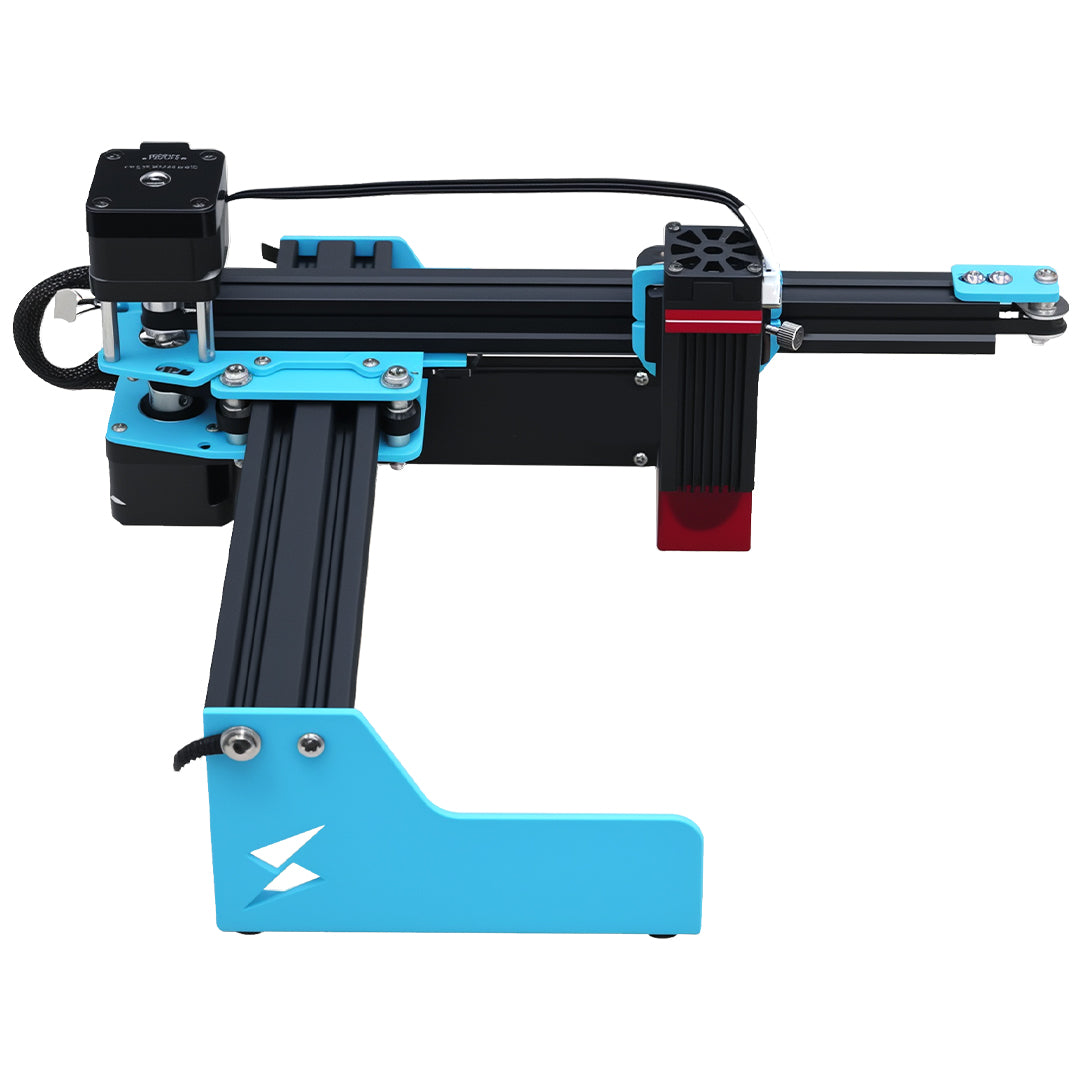
The current X1S Pro listing describes large-format diode processing and names LightBurn and LaserGRBL. Confirm the installed controller, software route, and supported file format. A Boolean command in another editor does not establish machine compatibility. Reopen the exported result in your actual supported workflow, inspect its preview, and qualify any physical test on identified compatible stock under normal attended-operation requirements.
Common questions
Why do touching circles produce nothing useful?
Circles that meet at a single point have no shared filled area suitable for a cut part. Overlap them deliberately in a practice copy if a shared lens-shaped region is the intended result. Do not move approved production geometry merely to make a command return something.
Should I redraw every missing part?
First restore the original operands and identify the operation or selection mistake. Redrawing from memory can introduce new dimensional errors. Rebuild only when necessary and compare the result against the approved geometry before repetition.