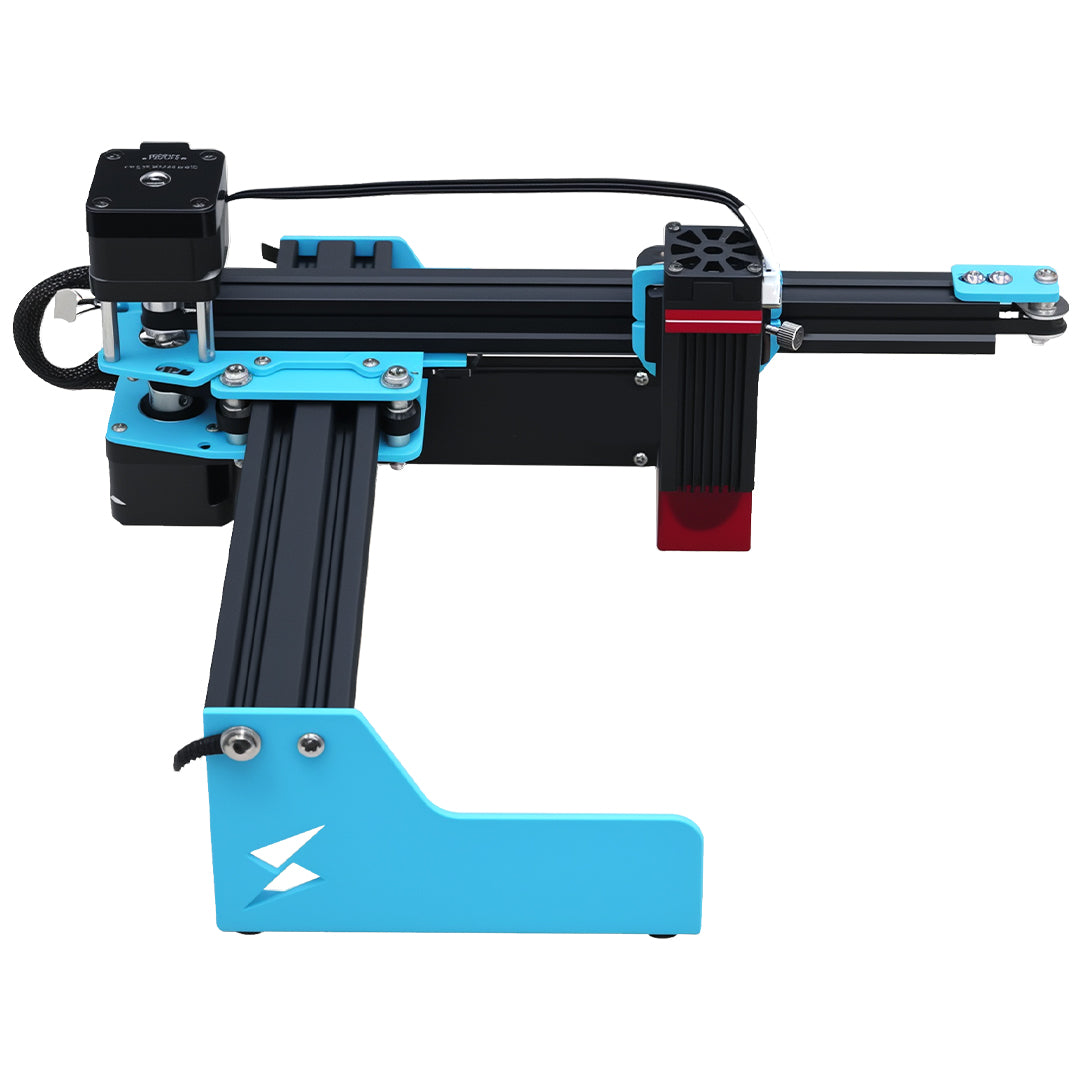


An imported design that visits distant corners in an unexpected order needs a file inspection before a larger X1S Pro run. Preserve the original, examine the actual segments and layers, and compare traversal in software preview. A visually tidy drawing can still contain hundreds of disconnected pieces or stacked boundaries.

A makerspace discussion about imported cutting paths describes this frustration with DXF and SVG files. That report establishes a useful question: is the unexpected travel coming from the artwork or from the selected ordering options? It does not establish a fault in TYVOK equipment.
Inspect one troublesome shape first
Save an editable copy with a new filename. Choose a small portion containing the unwanted jump, and note the original imported dimensions. In a suitable vector editor, distinguish closed outlines from separate lines. Inspect the same location at high magnification; a tiny gap can make a continuous-looking perimeter behave as separate segments.
Do not apply a large automatic joining tolerance to the entire drawing. That can connect neighboring details that should stay separate. Repair only a confirmed gap, compare the shape against the original, and preserve intentional openings. If a line seems to run twice, use the duplicate-line cleanup guide to investigate stacked geometry without deleting a necessary boundary.
| X1S Pro file check | Evidence to preserve | Reason to withhold the full layout |
|---|---|---|
| Imported scale | Known dimension before and after import | Size changes during transfer |
| Segment structure | Outline and endpoint view | Unexplained fragments remain |
| Layer assignment | Operation beside each visible shape | A perimeter has the wrong operation |
| Traversal preview | Start, jumps, and repeated passes | Preview crosses released-part areas unexpectedly |
Separate cleanup from ordering
After geometry is understood, compare one supported ordering option at a time. Keep a screenshot of each preview and record whether the option changes travel, processing sequence, or both. A shorter travel route alone is insufficient if it releases a small piece before nearby operations finish.
Touching contours need their own dimensional check: the shared-edge kerf preview proof explains why apparent overlap is not proof of a safe shared cut. If editing commands are unavailable, investigate groups and editable vector paths before redrawing anything.
The X1S Pro product listing is the reference for the model and purchased configuration. Its large-format positioning does not guarantee that an imported file has correct units, operations, or optimized travel. Transfer only through the currently supported workflow; a design editor's preview is not proof of device compatibility.
Should I join every line into one path?
No. Separate holes and intentionally open features may need to remain separate. Join only boundaries whose intended geometry is known, then compare their dimensions and preview.
Does the shortest preview mean the job is ready?
No. Confirm operation order, retained part stability, and the absence of duplicate passes. Where current instructions permit processing, prove a representative section on identified compatible material with appropriate ventilation and continuous attendance before committing the full sheet.