

An empty LightBurn Material Library does not necessarily mean the saved settings were deleted. First locate and preserve the existing .clb files, then load a copy and compare its entries with known-good job records. Do not save a blank library over a file that may contain the settings you are trying to recover.

In a material-library recovery question, the library appeared empty after the user clicked New. The issue illustrates the difference between a blank active library and missing data on disk. The current LightBurn Material Library documentation identifies .clb as the library format and distinguishes loading, saving and creating a new library.
Preserve the candidate files before opening them
Search the locations where the shop normally saves settings: the operator's working folder, the machine setup archive and any approved backup location. Record each candidate's filename, location and modification date. Those clues help choose what to inspect, but the newest file is not automatically the last correct one.
Copy each candidate to a separate recovery folder. Keep the originals unchanged while inspecting the copies. If a shared folder is involved, coordinate with the other operator before anyone saves changes; otherwise the evidence you are comparing may change underneath you.
Check identity before checking the numbers
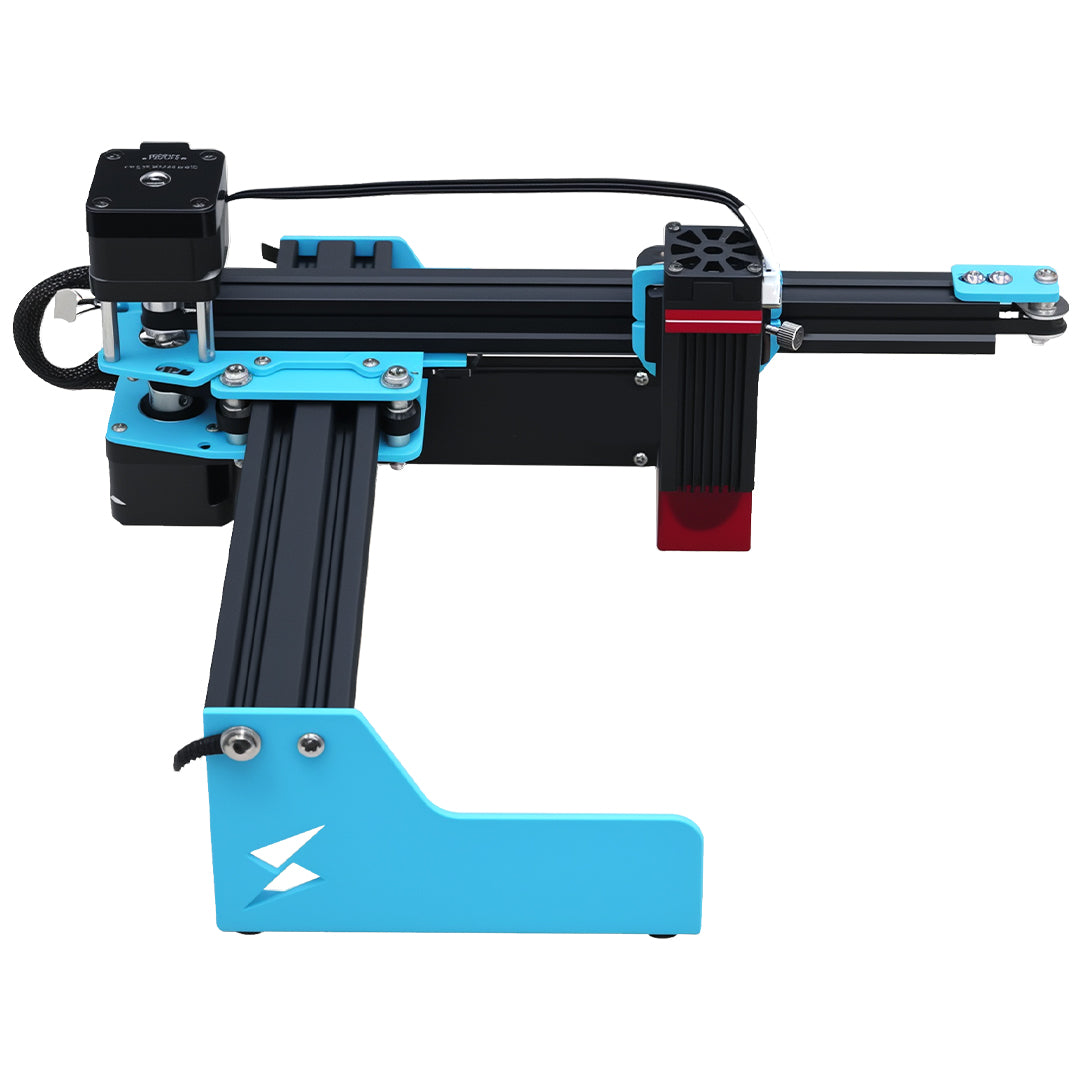
For the X1S Pro station, a recovered filename alone is not enough. Match the contents to a job with a retained result and a recorded setup.
| Recovery question | Evidence to compare | Hold production when |
|---|---|---|
| Is this for the intended machine? | Station record and installed laser configuration | The library came from an unidentified device |
| Is the material entry applicable? | Material identity, thickness where relevant, operation | Only a broad name such as “wood” is available |
| Are displayed values understood? | Units and saved job settings | A numeric difference has no explained cause |
| Does the result remain acceptable? | Controlled sample against retained output | The recovered operation changes the finish |
Reconcile discrepancies with the X1S Pro material-library change log. Do not silently replace a later approved entry with an older one simply because the old file opens successfully.
Load a copy and validate one operation
Use the documented Load Library control to open the preserved copy. Expand the material groups and inspect the intended operation. Save a separately named recovery version if changes are necessary, leaving the original candidate untouched.
Then compare the actual production file, including any object-level Power Scale and sub-layer settings. Recovering a library does not establish that every object in an imported job uses those values unchanged. Validate one suitable sample under the shop's approved process before restoring the full production schedule.
The TYVOK X1S Pro product page is a configuration reference, not a source of universal library entries. Confirm the actual module, supported software and identified stock at the station. A library from another machine must not be treated as validated merely because the product names sound similar.
What if I can find the project file but no library?
Preserve the project because its operation settings may provide useful evidence. Compare them with the retained result and station records before recreating any library entry; the project may contain exceptions made for that one job.
Does restoring preferences also restore my material library?
Do not assume it does. Identify the separate saved .clb asset and check it directly. A recovered window layout or device profile is not evidence that the intended material presets have been recovered.