

Keep the original xTool project, then transfer artwork through a format that both the exporting application and your verified X1S Pro preparation workflow support. Treat XS and XCS as xTool project formats. Their compatibility with different xTool versions does not establish direct TYVOK support or make their processing settings portable.

The xTool Studio v1.7.30 release notes, updated August 3, 2026, state that new projects use XS, newer Studio versions can open earlier XCS projects, and older Studio versions cannot open XS. Exporting XCS addresses that older-xTool-version problem. Moving artwork to another manufacturer's machine is a separate operation.
Start with a small migration specimen
Use a copy of the project containing one representative cut contour, one line of text, and one image if images occur in the actual design. Include a clearly labeled 50 mm reference square as a temporary design check, excluded from machine output. Record the original overall dimensions and photograph or capture the intended appearance.
Inspect which neutral artwork export options your installed application actually provides. Choose a vector format accepted by the receiving workflow for cut contours; choose an appropriate image format for raster artwork. If a needed export is unavailable, return to the original design source or obtain a suitable licensed file from its author. Renaming an XS extension to SVG cannot convert its contents.
| Transfer component | X1S Pro acceptance check |
|---|---|
| Outside contour | Closed, correct scale, no duplicate edge |
| Text | Correct wording and intended letter shapes |
| Image | Expected crop, tone, and pixel resolution |
| Layer roles | Reassign engraving and cutting deliberately |
| Machine parameters | Rebuild for the actual module and documented material |
Compare artwork before adding settings
Open the neutral export in the receiving editor and measure the reference square. A 50 mm square arriving as 50 inches reveals a unit interpretation error immediately. Remove the reference from output after using it. Compare the cut silhouette, holes, and lettering against the original at the same displayed size.
Pay particular attention to effects that looked correct only inside the source application. If a crop reveals unwanted objects after transfer, resolve geometry hidden behind a clipping mask. Do not flatten the whole composition into a photograph if its borders must remain vector cut paths.
Only after the geometry matches should you assign the destination device, operations, order, and validated processing parameters. A percentage value taken from another machine is not a calibrated energy measurement. Keep a record of the new material-specific setup independently of the artwork conversion.
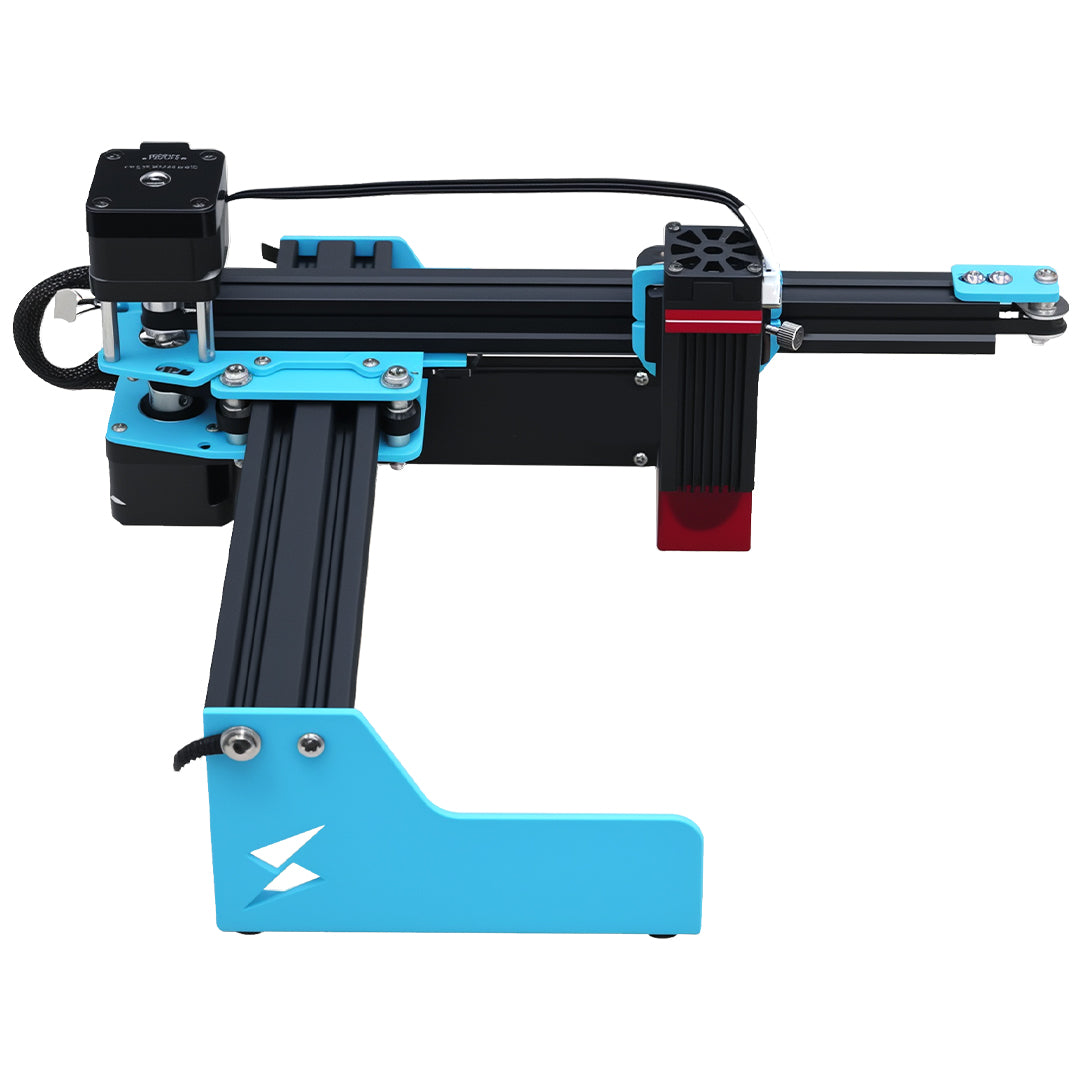
The X1S Pro product page lists LightBurn and LaserGRBL along with several job-delivery workflows. It does not establish XS or XCS execution. Once artwork is accepted, distinguish the editable project from the executable offline output before choosing the delivery method for your actual configuration.
Will exporting XCS preserve my xTool settings for X1S Pro?
Do not rely on it. XCS compatibility in the release notes concerns xTool software. Preserve the original for reference, but recreate and validate destination processing settings for the actual TYVOK module, material, and supported software.
Should I convert every design to a PNG to avoid missing objects?
A PNG can preserve a raster appearance, but it does not retain editable vector contours as cut paths. Separate image engraving from vector cutting needs. For a design containing both, inspect both kinds of exported artwork and confirm their alignment after import.