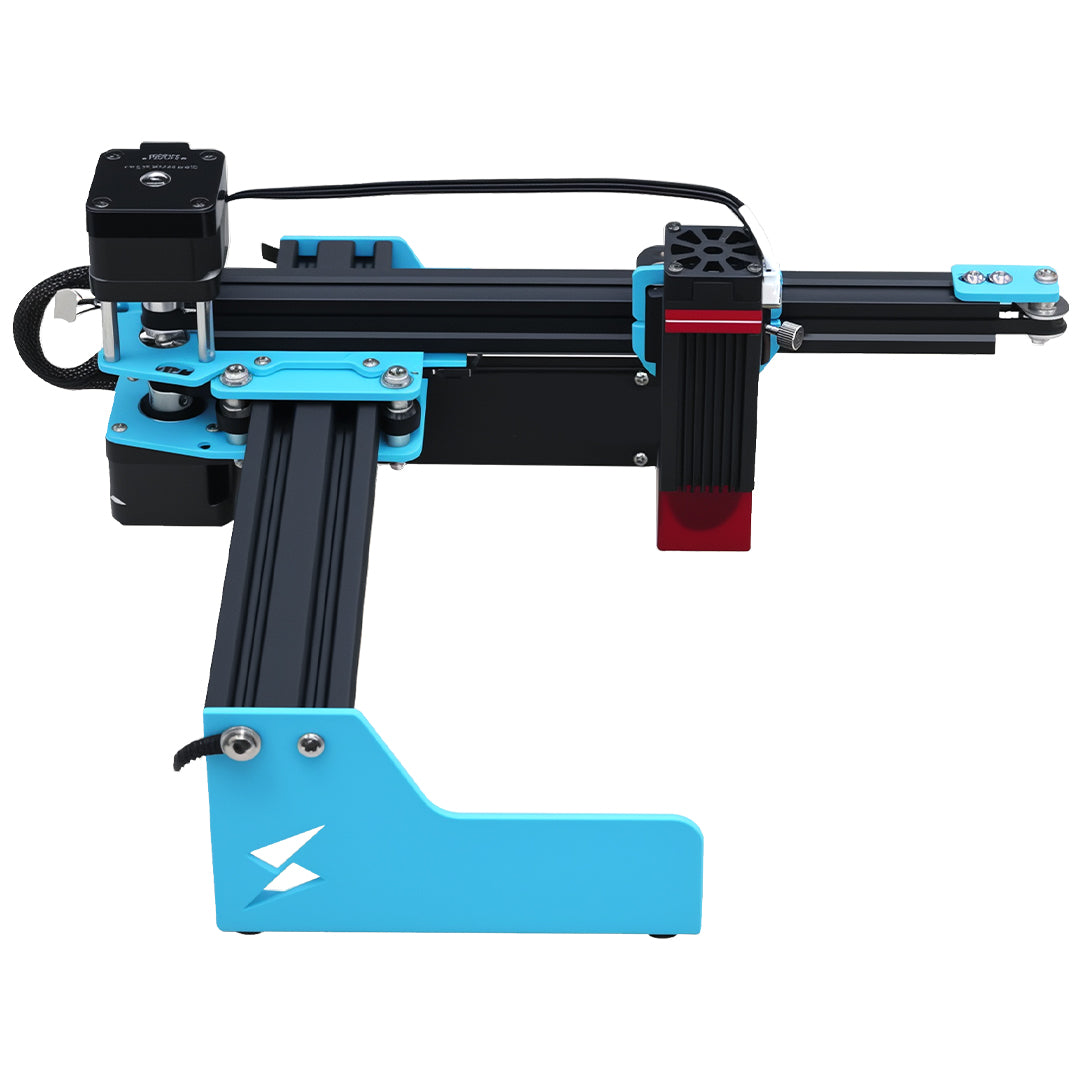


Choose mobile or PC control by the supported features required for the first project. A simple prepared design may suit the current mobile route; detailed vector editing, file repair or a licensed desktop workflow may require a PC. Confirm current feature parity instead of assuming both interfaces do everything.

The live A1 Mini page states dual mobile and PC control, creating a direct beginner workflow decision without assuming feature parity. Current demand source. Use the linked discussion or support page as evidence of the buyer problem, while treating the live TYVOK page as the separate source for machine facts.
Start with the file, not the device preference
List the source format, required edits, physical dimensions, layers and preview needs. If the file needs node repair or complex layout, complete that work in a supported editor before sending. A convenient phone cannot compensate for unresolved production geometry.
Verify the exact control path
Confirm application name, operating system, connection method, supported file types and current machine firmware for the regional configuration. Test connection and framing with a disposable sample. Screenshots from another product or app version are not instructions for this machine.
Keep one source of truth
Store the approved file in a controlled location and record which device sent it. Avoid separate phone and PC copies with different scaling. If the path changes, compare final dimensions and orientation before laser output and save the new release explicitly.
Evidence table for A1 Mini mobile versus PC control
| Workflow need | Mobile route question | PC route question |
|---|---|---|
| File editing | are required edits supported? | which editor/license is used? |
| Preview | is framing visible and current? | are layers and origin confirmed? |
| Transfer | which connection is supported? | which cable/network path? |
| Revision | where is approved file stored? | how are exports controlled? |
Release rule for A1 Mini mobile versus PC control
Use the route that passes connection, dimension, orientation and frame checks with the least uncontrolled file conversion. Record the app and version with the first accepted coupon.
A1 Mini boundary for A1 Mini mobile versus PC control
A1 Mini's live description states dual mobile and PC control, but that does not prove identical editing, import or licensing features. Confirm current applications and supported connections before purchase. Keep control devices outside the laser travel area, verify ventilation and fire readiness, and stop for abnormal motion, smoke or flame. Never leave an active job unattended because it was started remotely. Review the current A1 Mini page before purchase or use.
Related decisions after A1 Mini mobile versus PC control
Continue with First Laser Engraver Setup: A1 Mini Beginner Checklist when its separate variable applies. Use Free vs Paid Laser Software for A1 Mini: Check the Real Cost for the second neighboring decision. Neither guide replaces the evidence required here.
Buyer questions about A1 Mini mobile versus PC control
Is the phone always easier for beginners?
Only when its current workflow supports the required file and checks without hidden conversion.
Can I edit on PC and run from mobile?
Yes only through a verified export/transfer path that preserves size, orientation and revision.
Does mobile control allow remote unattended use?
No. The operator must remain present with the machine.