

In LightBurn, compare a left-to-right selection rectangle with a right-to-left rectangle before assuming small shapes are broken. One requires complete enclosure; the other can select objects that the rectangle crosses. A partially enclosed detail can therefore appear to be ignored even though the program is behaving as designed.

LightBurn's selection documentation describes this distinction. It is useful for A1 Mini owners who prepare artwork externally in LightBurn. This exercise does not establish a direct LightBurn connection to A1 Mini or guarantee a compatible export path.
Try three shapes with the machine uninvolved
Create a practice document containing an ungrouped rectangle, a circle and a small star. Position them in a row. Save the practice file separately from any customer artwork. Draw a selection box that fully encloses the rectangle but only crosses the circle; leave the star outside.
First drag from left to right, release and inspect what is selected. Clear the selection and repeat the same box boundary from right to left. The circle should now help demonstrate the difference. Repeat with the small star partly inside the box so you can recognize the behavior on a less obvious detail.
Count the intended objects before moving anything. When selection indicators are difficult to see, zoom in. Do not treat the surrounding bounding box as proof that every internal element belongs to the selection.
| A1 Mini artwork preparation check | What to observe |
|---|---|
| Enclosing selection | Only fully enclosed practice objects selected |
| Crossing selection | Intersected practice objects included |
| Small decorative detail | Selected indicator visible before movement |
| Grouped customer artwork | Group membership understood before editing |
| Final composition | No element left behind after a reversible move |
Apply the lesson to a hypothetical gift design
Suppose a small plaque design contains a name, an underline and a tiny heart just outside the name's bounding area. An enclosing rectangle around the name can leave the heart behind. Move a copy a short distance, inspect the relative positions and undo. If the heart stays put, fix the selection before adjusting the final layout.
This quick reversible check separates selection behavior from geometry damage. Do not redraw the heart until you have established whether it was simply excluded. Once the intended objects are selected, a separate Weld-versus-Union comparison can help when combining artwork changes its interiors.
Finish preparation before choosing the machine workflow
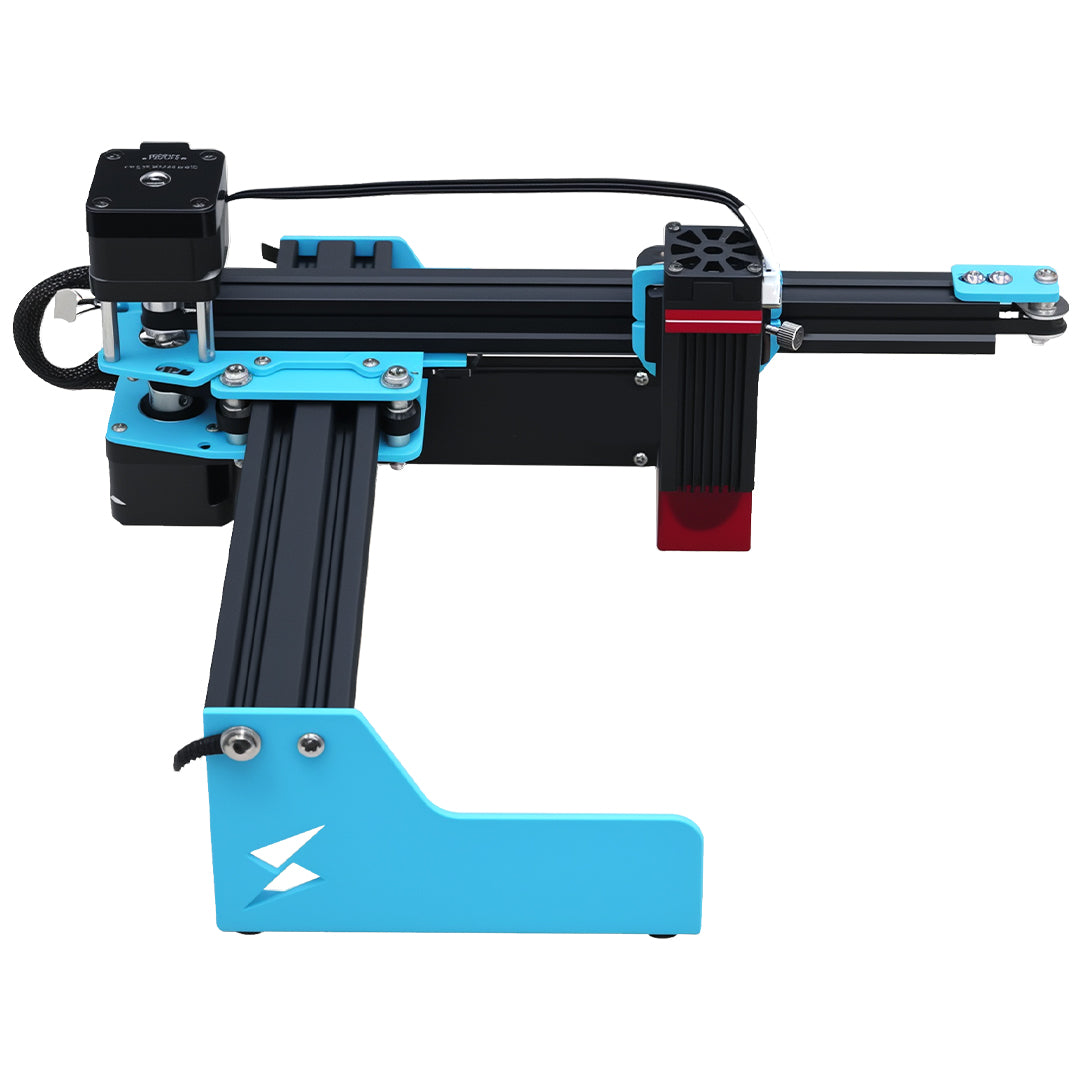
The A1 Mini product page presents a compact craft machine. Consult its current supported software instructions for bringing prepared artwork into the actual operating workflow. Verify the resulting dimensions and appearance there; a correct selection in an external editor is not a machine setup check.
What if I select everything correctly but Boolean Union stays disabled?
That is a different condition. Check the actual objects and their grouping using the disabled-Union group check before assuming the drag direction caused it.
Does a bigger selection box always solve missing details?
It can include more objects, including unwanted ones. Practice on isolated shapes, then inspect the customer composition carefully. Select only the elements needed for the edit and verify that unrelated artwork did not move with them.