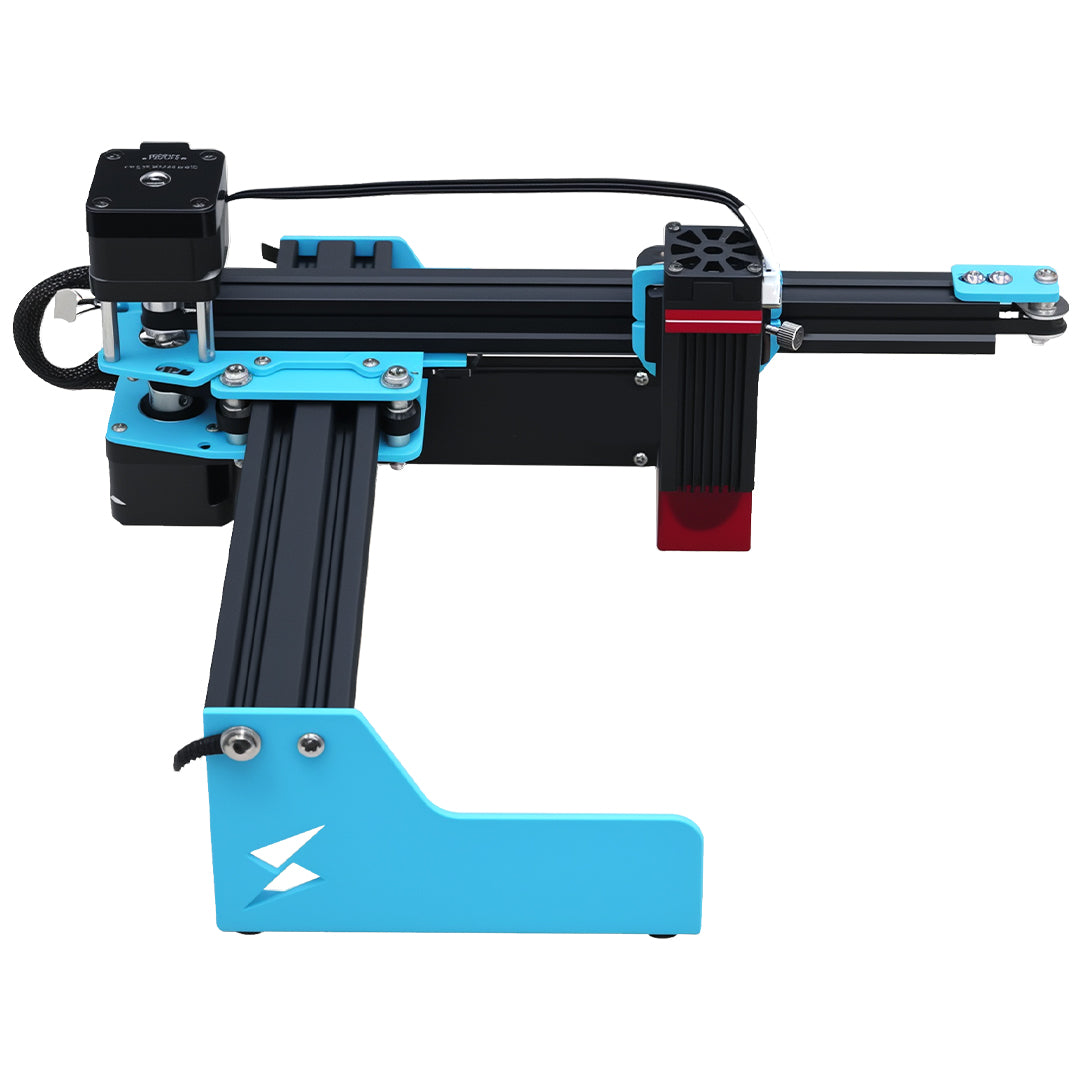


Before assigning a kerf offset to an imported or generated cutting path, determine whether the geometry already contains compensation. Applying a second offset can change a mating part's size even though the outline still looks reasonable on screen. For an X1S Pro batch, settle that question with documented geometry and a small fitting pair before filling the sheet.

A contributor in the LightBurn 2.2.00 RC1 early-access discussion moves generated paths onto a layer without kerf. This is a specific workflow example, not proof that every exported path already includes an offset.
Identify what the line represents
A design outline may describe the desired finished edge. A generated toolpath may instead describe the position the laser should follow after an allowance has been calculated. Those are different objects even when the difference is difficult to see at normal zoom.
Ask the file provider what was exported and which compensation was active. Preserve the original design, the generated result, and any recorded offset values. In a duplicate project, inspect both the path geometry and the receiving layer settings. Turning off a receiving offset does not remove an adjustment already embedded in the path itself.
| Evidence in the job | Decision before release |
|---|---|
| Untouched nominal outline | Determine compensation for the actual material |
| Documented compensated path | Avoid adding the same adjustment again |
| Unknown generated geometry | Hold the batch and establish dimensions |
| Recreated replacement component | Compare against the original mating shape |
Measure an outer dimension and a matching opening, rather than relying on a single bounding box. Internal and external boundaries can require different treatment. A test pair should include the actual type of fit you need: an ornamental edge alone cannot validate a press-fit joint.
Preserve one complete geometry history
Record the software version, source dimensions, material thickness, and compensation location with the accepted test. Numeric notation also matters; use the decimal separator readback check when settings move between operators or computers.
For generated puzzle components, saving the seed and final jigsaw outline preserves the intended mating geometry. A seed alone cannot document later offsets. During an operator handoff, also record the active output page of a multi-page job, so the correct fitting test and production layout remain associated.
The TYVOK X1S Pro supports a production-oriented large-format approach. Confirm the actual configuration, supported workflow, and compatible material before processing. Neither machine size nor a generated-path feature supplies a universal kerf value. Early-access features need separate evaluation before they become part of an established batch procedure.
Questions about compensation
Can I infer the offset from the file name?
No. A name such as “ready to cut” does not identify whether compensation is embedded or applied by a layer. Obtain the geometry history or measure a controlled comparison before releasing repeated parts.
If the first joint is too tight, should I double the offset?
First establish where compensation is applied and whether the material thickness matches the design. Doubling an uncertain value can amplify the original mistake. Change one known adjustment and evaluate a new fitting pair.