

Layer power and an object's Power Scale are different controls. A sub-layer defines an operation with its own settings; Power Scale modifies the power applied to a particular shape. Inspect both before assuming that the percentage shown in the layer list describes every object in an imported production file.

The distinction prompted a LightBurn question about interacting power settings. The user wanted to know whether layer, sub-layer and shape values overrode one another. Current Shape Properties documentation gives an important qualification: scaling operates between Min and Max Power where supported, or between zero and Max Power on devices without the Min setting.
Read the arithmetic with its assumptions attached
For a zero-to-Max example, a layer request of 50% with a shape scale of 50% corresponds to 25% of the software's full-scale request: 0.50 × 0.50 = 0.25. This illustrates the relationship between controls; it is not a recommended operating setting or a measurement of optical watts.
If the device supports a nonzero Min Power range, do not apply that simple multiplication without checking how the range is handled. The controller, device type and operation matter. A percentage in the interface cannot by itself tell you the energy delivered to a particular material.
Separate each operation from each object's exception
The Cut Settings Editor reference and its sub-layer documentation describe multiple operations associated with one layer. An engraving operation followed by a line operation needs its own settings and order; there is not one parent percentage that should be multiplied across all those operations.
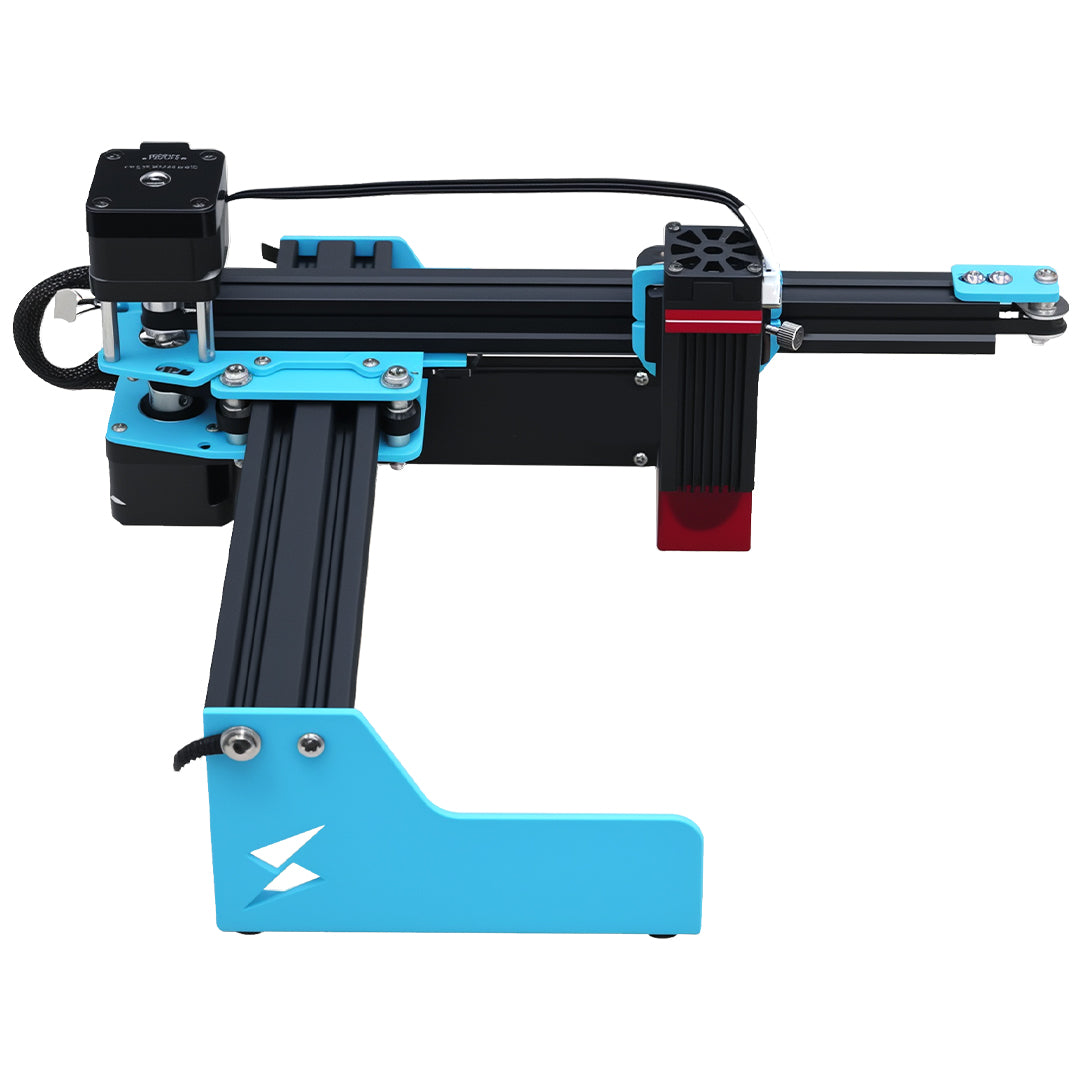
Use a copy of the X1S Pro job to build a short settings inventory:
| Place to inspect | Record | Why it matters |
|---|---|---|
| Each enabled sub-layer | Operation type and its power values | A second operation may differ from the first |
| Representative shapes | Power Scale and any intentional exception | Identical layer colors can hide object differences |
| Imported group contents | Which shapes carry non-default scaling | A supplier's exception may survive import |
| Actual device selection | Supported controls and known station setup | Another device may interpret available options differently |
Do not change every shape to 100% merely to make the file look consistent. Some exceptions may be intentional. Compare them with the approved result and mixed-file layer handoff record, then resolve undocumented differences before output.
A recovered preset does not settle shape settings
If the job was restored after a settings problem, validate the recovered material-library file separately. A correct library entry and an unexpected object scale can coexist. Keep a record of which settings came from the library and which belong to the artwork.
Use the TYVOK X1S Pro configuration reference to confirm the installed setup and software support. Verify the intended process on a suitable sample with the shop's established material controls. This check requires no firmware editing or S-value changes, and it does not establish any universal power percentage.
Why do two shapes on the same layer engrave differently?
Different object Power Scale values are one possible cause. Inspect them individually, then check material, focus and operation differences instead of assuming the layer color guarantees identical output.
Does 25% requested power mean one-quarter of the rated laser watts?
No. The interface value is a software request, not an optical measurement. Do not use that arithmetic to calculate material exposure or to transfer a setting between different lasers.