

TyvokStudio Laser Engraving Software Beta User Guide

File Version: tyvok2509008A
Software Version: V1.1.3
Last Updated: 2025-09-25
I. Welcome & Important Notes
Welcome to TyvokStudio!
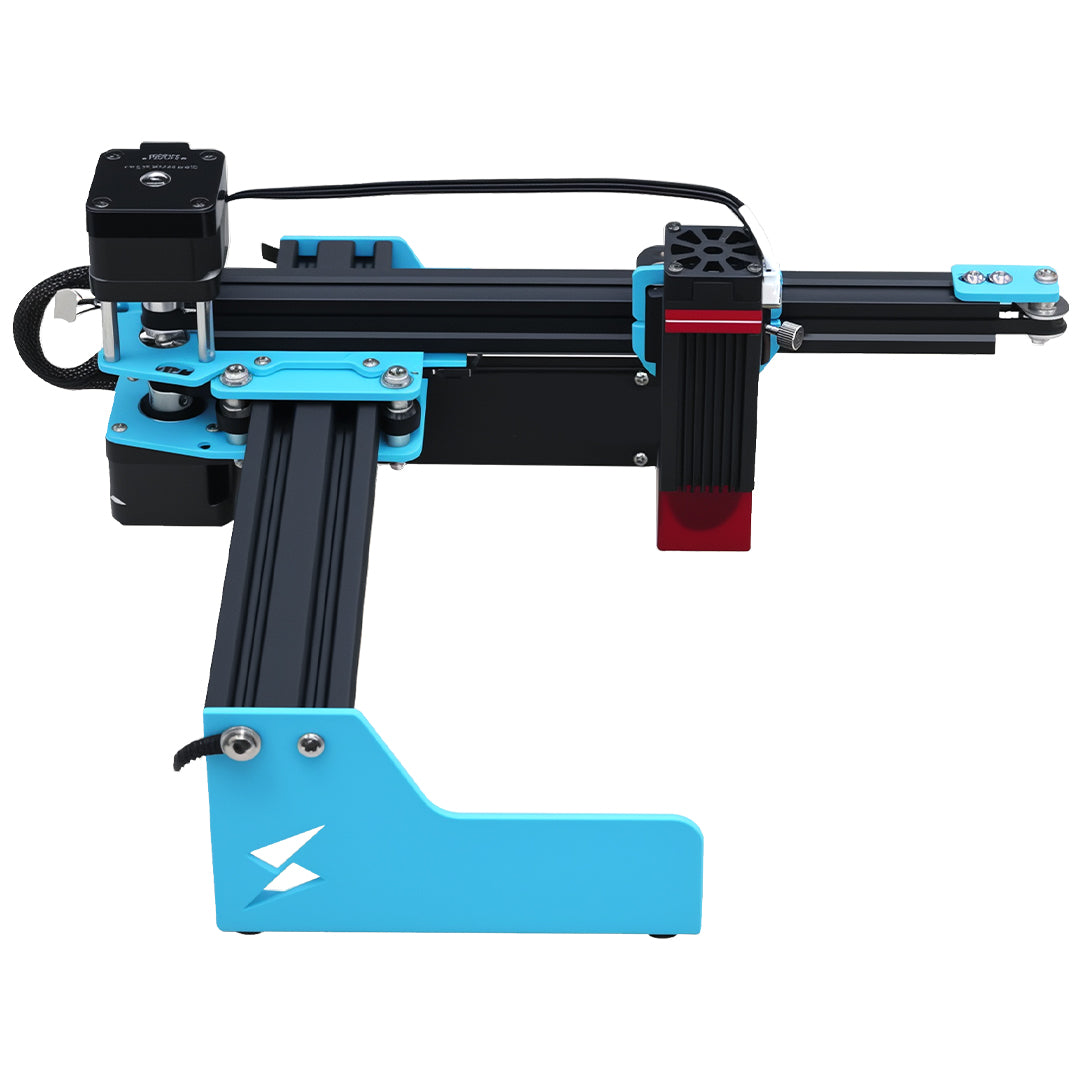
Thank you very much for participating in this beta testing program. Your involvement is crucial in helping us discover and improve issues, so we can build a more outstanding laser engraving software together. We plan to make the official version free for all customers once released. This software is compatible with all TYVOK laser engraving machines (such as K1, S1, X1S, X1S Pro, X1C, A1 Mini, etc.).
Important Notes:
- Beta Version: This is an internal beta version, which may have stability issues, unfinished features, or unknown errors. It should not be used in production environments or for critical engraving tasks.
- Data Safety: Please back up your design files before using. A software crash may result in unsaved work being lost.
- Device Safety: Before actual engraving, always perform a 'dry run' (moving the laser head without firing the laser) to confirm the movement range and path are correct, preventing collisions or engraving errors.
- Feedback First: Any issues, errors, or suggestions you encounter are highly valuable. Your feedback drives our progress. (Feedback methods are provided at the end of this guide.)
II. System Requirements & Installation Guide
1. Minimum System Requirements:
- Operating System: Windows 7/Windows 10 (64-bit)/Windows 11
- Processor: Intel Core i5 or equivalent AMD processor
- Memory: 8 GB RAM
- Disk Space: At least 2 GB available
- Graphics: Integrated graphics is sufficient
- Other: USB 2.0 or higher port (for device connection)
2. Download & Installation:
2.1 Download the installer from the beta link provided.
Link:
2.2 Installation steps (Windows):
- Right-click the installer and select 'Run as Administrator'
- Select 'Yes' to proceed
- Choose 'Install for me only'
- Currently available languages: English, Chinese
- Select installation path, click 'Next'
- Continue clicking 'Next' until installation begins
- Continue clicking 'Next' until installation begins
- Click 'Install' (takes 20–60s; ignore antivirus prompts if blocked)
- Click 'Finish' to complete and launch the software.
III. Software Interface Overview
Once started, the main interface contains:
A. Menu & Toolbar: File operations, editing commands, shortcuts
B. Object Properties Panel: Displays position, size, rotation, editable
C. Layer Panel: Manage engraving elements, set independent parameters
D. Drawing Toolbar: Create shapes, add text
E. Work Log: Record of actions
F. Layer Panel Position
G. Workspace (Canvas): Main design area; gray grid = engraving area
H. Device Connection: Manage devices & work area size
I. Material Library: Save common engraving parameters
J. Coordinate Settings: Adjust coordinate system
K. Real-time Laser Head Coordinates
L. Manual Laser Head Control
M. Auxiliary Toolbar
N. Processing Control Bar
IV. Device Connection & Setup
1. Connect Laser Device:
- Turn off machine power
- Connect PC and machine via USB cable
- Turn on machine
2. In Software:
- Click 'Add Device'
- Wait 3–5 seconds for auto search, then double-click device
- Set machine model (e.g., A1 Mini) and work area (e.g., X=120mm, Y=130mm), Click 'Confirm' to save settings
V. Basic Operation Workflow
1. Create/Import Design:
- Draw shapes, add text using built-in tools
- Or import existing files (.svg, .dxf, .ai, .png, .jpg, .bmp)
2. Edit & Layout:
- Adjust size, position, rotation
- Right-click image > 'Image Processing' to adjust parameters
- Set Engraving Parameters: power range, speed (mm/s)
*Tip: Always start with low power & speed for testing*
3. Reset, Preview & Engrave:
- Use 'Reset' to move laser head to origin
- Use 'Preview' to check safe path
- Fix material on workbench, click 'Start' and monitor process
VI. Feedback Channels
Your feedback is our most valuable fortune! Please contact us if you have any issues or suggestions:
Feedback Email: cs@tyvok.com
When reporting, include:
- Your OS version (e.g., Windows 11 22H2)
- Software version (V1.1.3)
- Device model
- Detailed problem description & reproduction steps
- Screenshots or videos if applicable
Thank you again for your participation and support!
💡 Tip: Looking for the best value galvo laser for metal marking? The Tyvok P2 2W Galvo Laser is our top pick for 2026 — currently 50% OFF at just $149!